
Back to guides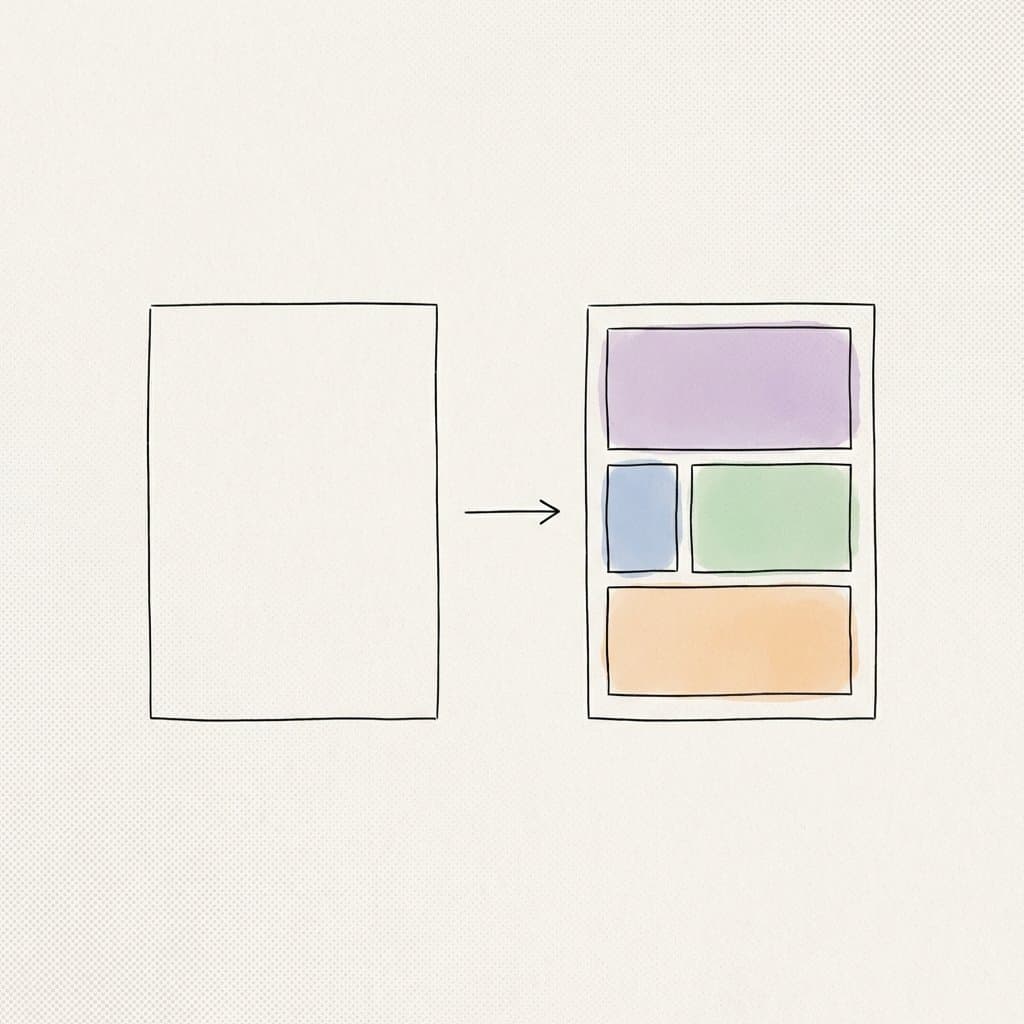
HOW TO GUIDES | February 10, 2026
Creating using Templates in ShopOS
Templates help you start with structure instead of a blank prompt.
They’re useful when you already know the kind of output you need – like ads, product creatives, or campaign assets.
Templates guide the workflow, so you spend less time figuring out what to write and more time refining results.
 Steps
Steps
- Open the Templates section from the left sidebar.
- Choose a template that matches your goal.
- Click the template to open it in chat.
- Fill in the fields or instructions shown.
- Add references or images if helpful.
- Click Proceed.
ShopOS uses a Space based on that template and generates variations that follow its structure.
What happens next
You can:
- refine results
- regenerate new variations
- adjust inputs and continue working
The template keeps the overall layout and intent consistent while you iterate.
Tip
If you’re unsure what to write, start by filling just the required fields.
You can add more detail after seeing the first results.